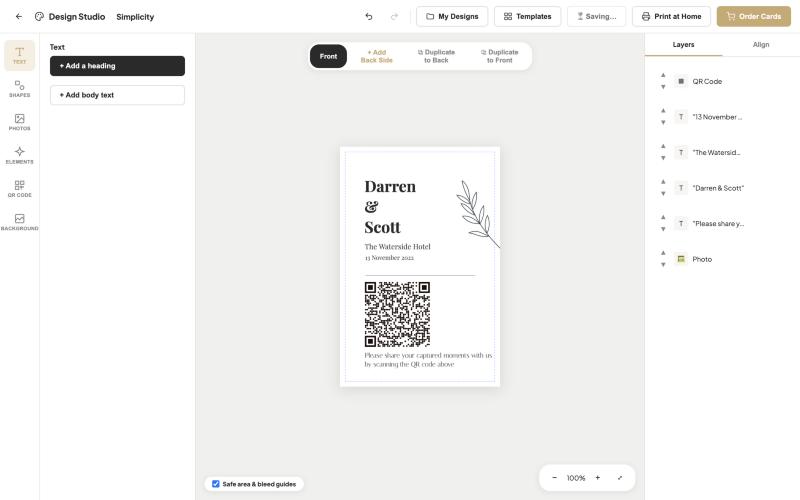
Scan the QR code
Guests open their phone camera and point it at the code on the table card. On both iPhone and Android a link appears on screen. One tap and your gallery page opens in the browser.
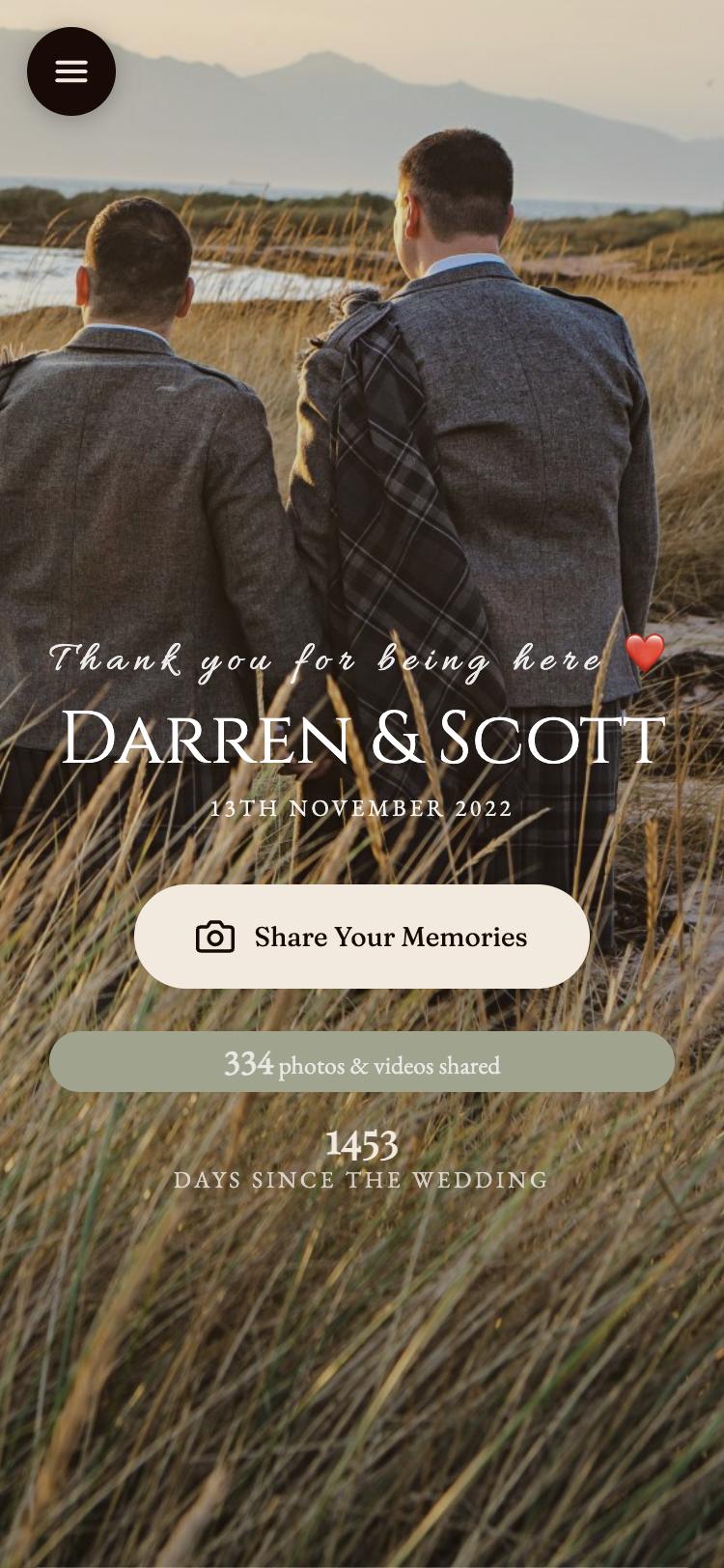
Tap Share Your Memories
The guest page carries your names, your date and your cover photo, so it feels like part of your day rather than a generic upload form.
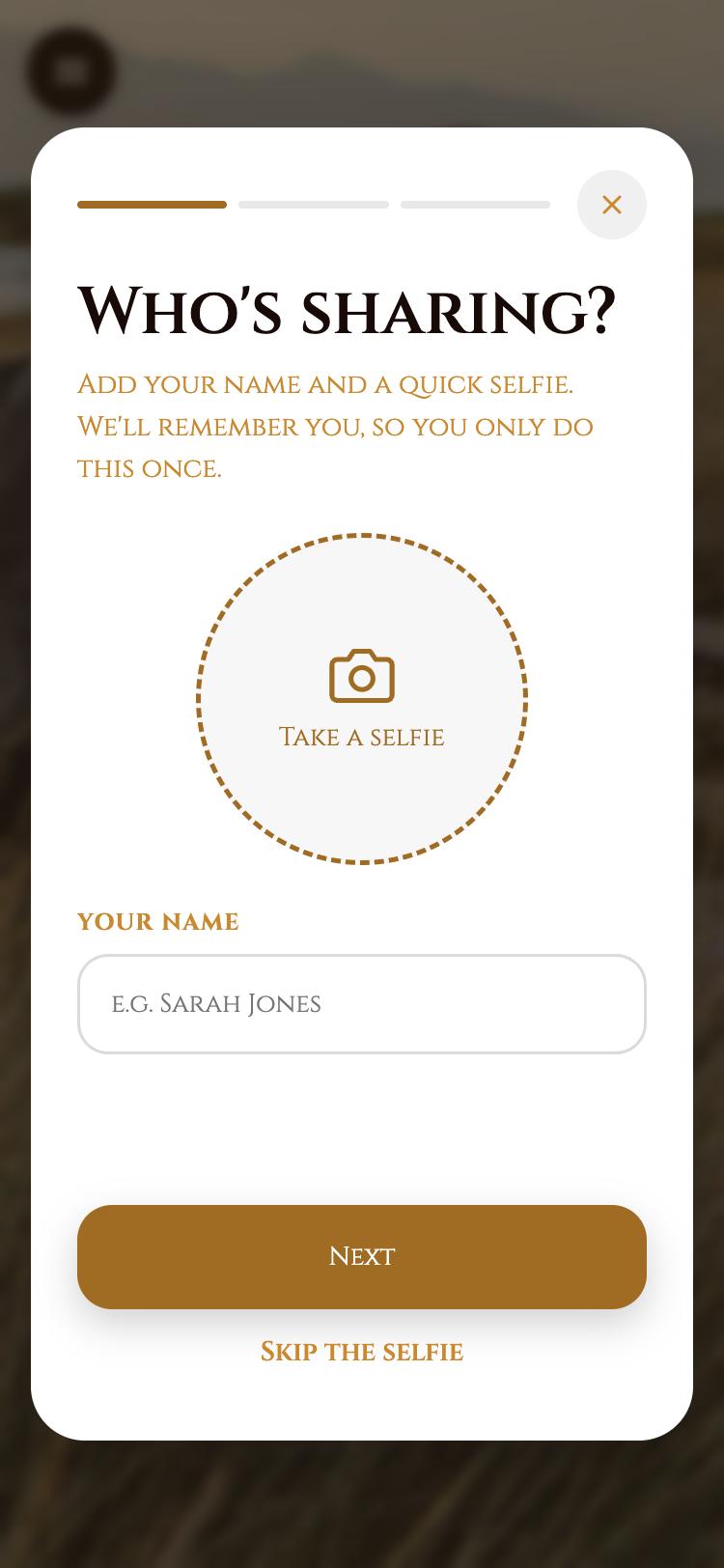
Add a name and an optional selfie
Guests add their name so you know who shared what. A selfie is optional and can be skipped. The page remembers them, so they only do this once.
Choose photos and send
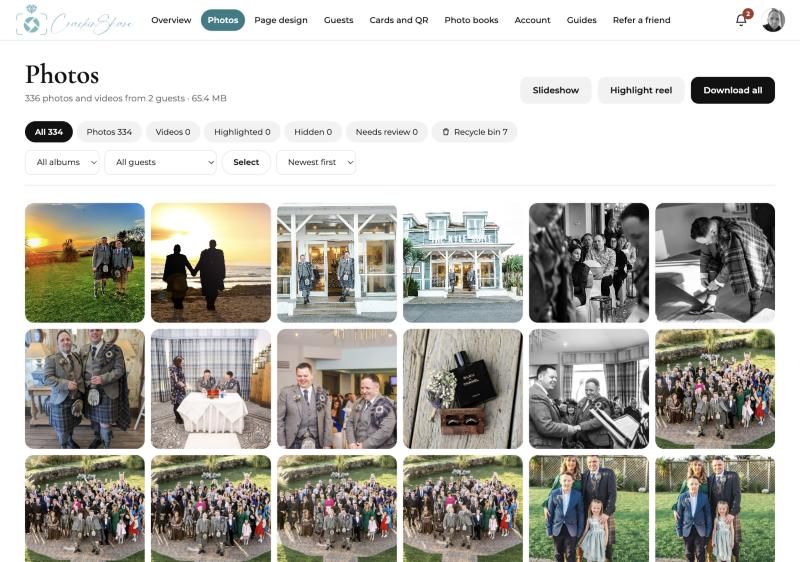
Guests pick photos and videos from their camera roll or take new ones, then send them. Your gallery fills while they get on with the party.
Tips that help
- Print a short line on the card, such as "Scan to share your photos with us", so guests know what the code does.
- Tell older guests that the camera app is all they need. No download, no sign in.
- Keep the card away from candles and centrepieces so the code stays easy to scan.
Common questions
Will guests need to sign in?
No. They add a name and, if they like, a selfie. That is all.
Does it work on iPhone and Android?
Yes. The guest page runs in the phone browser, so any modern phone with a camera can use it.
Can guests upload videos as well as photos?
Yes. Guests can share photos and videos from their camera roll.